
Generative Pages in Model Driven Apps allow you to add custom pages to your application using AI. These pages are built in the App Designer in Power Apps Studio using React code which is fully editable. Here is an example of a Landing Page for IncidentAnalytix created with Generative Pages. Since Generative Pages generates the full code, each AI code generation can be different. This is just one example showing you what you can do.
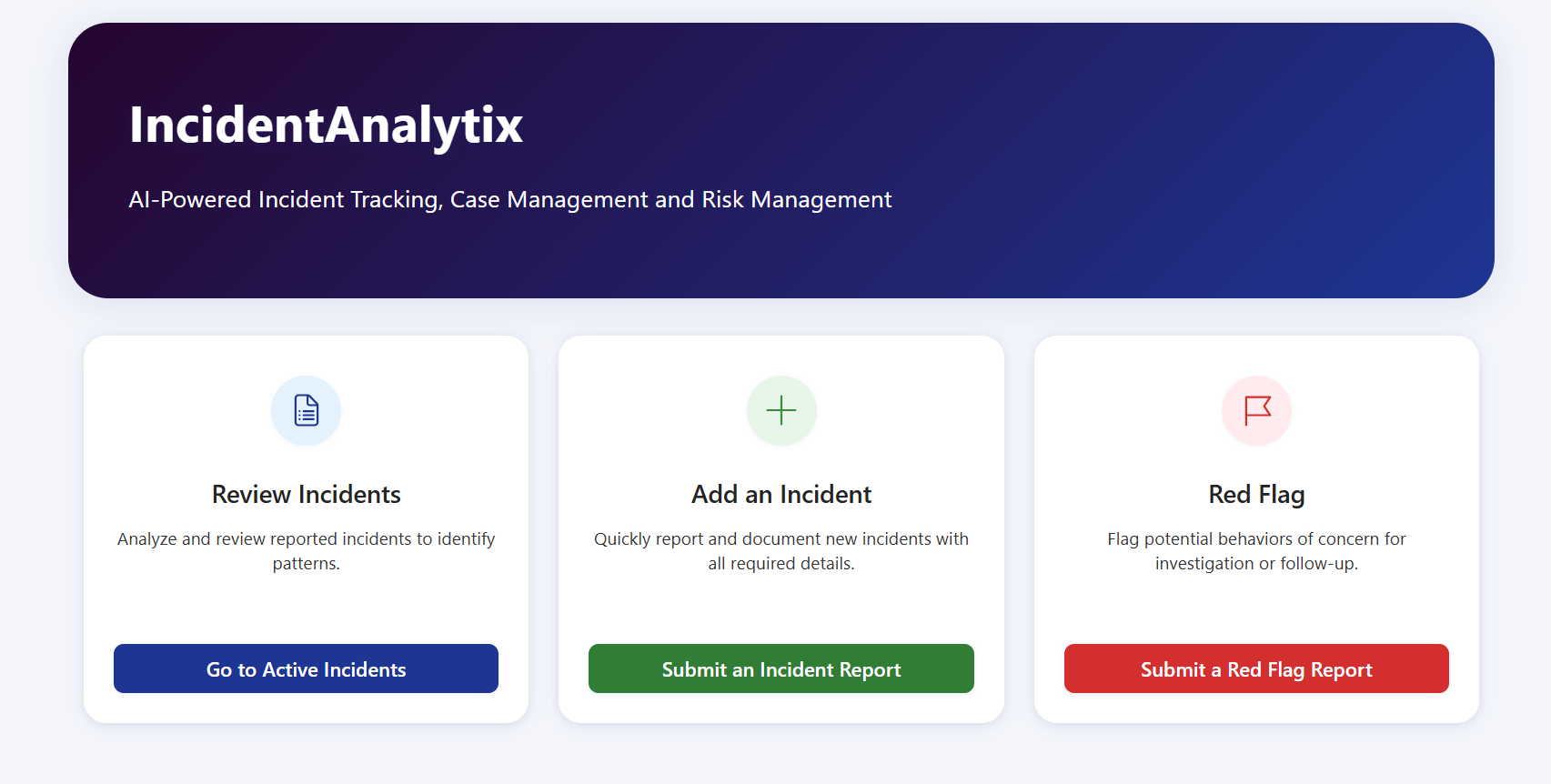
This guide documents a sample navigateToPage helper function used in IncidentAnalytix Generative Page components. It covers all supported navigation patterns, copy-ready code for each button type, and step-by-step instructions for retrieving GUIDs directly from the browser address bar — no additional tooling required.
Important: All formId and viewId values must be GUIDs. Display names are not supported by the navigation API. See Section 3 for retrieval steps.
Here is the sample AI prompt used to create the landing page above. The Helper Function Code below was also included in the AI prompt as well as a sample image like the one above showing the basic layout.
PROMPT
Create a modern, fully responsive landing page using Fluent UI standards for a Model-Driven App named “IncidentAnalytix”, using the attached reference image as the visual inspiration.

The layout should have:
1. A large hero banner at the top with rounded corners and generous padding.
2. Three equal-width callout cards below the hero section.
3. A clean, modern, professional UI suitable for an enterprise incident management application.
4. Fully responsive behavior:
   - Desktop: 3 equal-width cards in one row
   - Tablet: cards wrap cleanly while maintaining balanced widths
   - Mobile: cards stack vertically with full width
5. Use a polished modern design with subtle shadows, rounded corners, consistent spacing, strong visual hierarchy, and accessible button contrast.

Hero section requirements:
- No stock image and no illustration.
- Use a pure CSS gradient fill only.
- Gradient colors:
  - Start color: #25052E
  - End color: #1E3593
- Gradient direction should visually flow from the bottom-left corner toward the top-right corner in a very smooth transition.
- The hero should contain left-aligned white text:
  - Title: IncidentAnalytix
  - Subtitle:
    AI-Powered Incident Tracking,
    Case Management
    and Risk Management
- Use strong typography and maintain generous whitespace similar to the attached reference.

Card section requirements:
- The three callout cards must be exactly equal width on desktop.
- All cards should have consistent height and aligned button placement.
- Use soft icon circles at the top of each card, with a different accent background color per card.
- Each card should contain:
  1. Icon
  2. Title
  3. Description
  4. Primary action button
- Use a modern card look with light background, subtle shadow, rounded corners, and good spacing.

Create these 3 action cards:

Card 1:
- Title: Review Incidents
- Description: Analyze and review reported incidents efficiently to identify patterns.
- Button text: Go to Active Incidents
- Icon suggestion: DocumentBulletListRegular
- Icon circle accent: soft blue
- Button action: navigate to the Active Incidents view page for the idb_incident table using navigateToPage with pageType "entitylist".
- IMPORTANT: Use a placeholder for the Active Incidents view ID if not known, such as "<ACTIVE_INCIDENTS_VIEW_ID>". Also include a placeholder for viewType only if needed.

Card 2:
- Title: Add an Incident
- Description: Quickly report and document new incidents with all required details.
- Button text: Submit Incident Report
- Icon suggestion: AddRegular
- Icon circle accent: soft green
- Button action: navigate to the Incident Main page to create a new record using navigateToPage with pageType "entityrecord" and entityName "idb_incident".

Card 3:
- Title: Red Flag
- Description: Flag critical issues that require immediate attention and follow-up.
- Button text: Submit a Red Flag Report
- Icon suggestion: FlagRegular
- Icon circle accent: soft red
- Button action: navigate to the Red Flag Main page to create a new record using navigateToPage with pageType "entityrecord" and entityName "idb_redflag".

Technical requirements:
- Use React and TypeScript.
- Use Fluent UI / Microsoft-friendly styling patterns where appropriate.
- Generate clean production-quality code.
- Include the exact navigateToPage helper function below and wire each button to it.
- The page should feel native inside a Model-Driven App.
- Do not use browser alert dialogs.
- Use console.error for exceptions.
- Add hover states for cards and buttons.
- Ensure keyboard accessibility and proper button semantics.
- Avoid external dependencies beyond what is standard for this type of page component.

Implement the three cards using a structure similar to this, but correct the navigation targets so they match the requirements:

- Review Incidents -> entitylist for idb_incident using a viewId placeholder
- Submit Incident Report -> entityrecord for idb_incident
- Submit a Red Flag Report -> entityrecord for idb_redflag

Visually match the attached reference image:
- Hero banner at top
- Three cards below
- Clean spacing
- Balanced proportions
- Modern enterprise look
- No clutter
- No unnecessary sections below the cards
1. The navigateToPage Helper Function
Place this function once in your generative page component file. Every button’s onNavigate handler calls it with a typed target object.
const navigateToPage = (
target:
| { pageType: “entitylist”; entityName: string; viewId?: string; viewType?: number }
| { pageType: “entityrecord”; entityName: string; formId?: string; entityId?: string; data?: Record }
| { pageType: “external”; url: string }
) => {
if (target.pageType === "external") {
    window.open(target.url, "_blank");
    return;
}

if (typeof Xrm !== "undefined" && Xrm?.Navigation?.navigateTo) {
    try {
        const navInput: any = {
            pageType:   target.pageType,
            entityName: target.entityName,
        };
        if (target.pageType === "entitylist") {
            if (target.viewId)   navInput.viewId   = target.viewId;
            if (target.viewType) navInput.viewType = target.viewType;
        }
        if (target.pageType === "entityrecord") {
            if (target.formId)   navInput.formId   = target.formId;
            if (target.entityId) navInput.entityId = target.entityId;
            if (target.data)     navInput.data     = target.data;
        }
        Xrm.Navigation.navigateTo(navInput).catch(err => {
            console.error("IA Navigation error:", err);
        });
    } catch (err) {
        console.error("IA Navigation exception:", err);
    }
} else {
    const appId = window.location.href.match(/appid=([^&]+)/)?.[1] ?? "";
    let url = `${window.location.origin}/main.aspx?appid=${appId}&pagetype=${target.pageType}&etn=${target.entityName}`;
    if (target.pageType === "entitylist") {
        if (target.viewId)   url += `&viewid=${target.viewId}`;
        if (target.viewType) url += `&viewtype=${target.viewType}`;
    }
    if (target.pageType === "entityrecord") {
        if (target.formId)   url += `&formid=${target.formId}`;
        if (target.entityId) url += `&id=${target.entityId}`;
    }
    window.open(url, "_self");
}
};
2. Button Permutations — Quick Reference
All 12 supported navigation patterns at a glance. Detailed code for each is in Section 4.
| # | pageType | formId | entityId | viewId | data | Use Case |
| 1 | entitylist | — | — | — | — | Default list (system default view) |
| 2 | entityrecord | — | — | — | — | Default new form |
| 3 | entityrecord | ✅ | — | — | — | Specific form, new record |
| 4 | entitylist | — | — | ✅ | — | Specific view |
| 5 | external | — | — | — | — | External URL (new tab) |
| 6 | entityrecord | — | ✅ | — | — | Open specific existing record |
| 7 | entityrecord | ✅ | ✅ | — | — | Existing record on specific form |
| 8 | entityrecord | — | — | — | ✅ scalar | New + pre-fill simple fields |
| 9 | entityrecord | — | — | — | ✅ lookup | New + pre-fill lookup field |
| 10 | entityrecord | — | — | — | ✅ mixed | New + pre-fill scalar + lookup |
| 11 | entitylist | — | — | ✅ | — | Specific view + explicit viewType |
| 12 | entityrecord | ✅ | — | — | ✅ mixed | Specific form + pre-fill (power combo) |
3. Retrieving GUIDs from the Browser Address Bar
Every GUID you need — form, view, app ID, or record — is available directly from the browser address bar while you are using IncidentAnalytix. No additional tools or database queries are required.
ALM Note: GUIDs retrieved from Dev are identical in Test, Demo, and Production once deployed via managed solution. Retrieve each GUID once from Dev and reuse across all environments.
3.1 Understanding the MDA URL Structure
Every page in IncidentAnalytix uses a predictable URL structure. The example below is a real entity record URL with each parameter identified.
https://xxxxxxxxxxxxxxxxxx.crm.dynamics.com/main.aspx
?appid=3dfdaf4d-2ad0-411d-bbe2-cfba4af9496e ← IA Model-Driven App ID (same on every page)
&pagetype=entityrecord ← entityrecord = form | entitylist = list
&etn=idb_incident ← entity logical name (not a GUID)
&id=6ee4f97b-be20-4167-88cb-4b04c802baca ← specific record GUID
&formid=b8f6daca-f2ce-ef11-8ee9-000d3a330c83 ← form GUID — this is your formId
3.2 Getting a Form GUID (formid=)
The formid value is the same regardless of which record you have open, as long as you are on the target form.
- Open any record of the target entity (e.g. any idb_incident record).
- If the entity has multiple forms, use the form switcher to navigate to the specific form you want to target.
- Look at the browser address bar. Copy the value after formid=
- The value ends at the next & or the end of the URL. Do not include the & character.
Warning: Do not confuse id= and formid=. When on a record page, both appear in the URL. id= is the specific record GUID. formid= is the form GUID. They are always different values.
3.3 Getting a View GUID (viewid=)
The viewid parameter appears in the URL when you are on an entity list page with a specific view selected.
- Navigate to the entity list for the target entity (e.g. open the Incidents list).
- Use the view selector to switch to the specific view you want to target.
- Look at the browser address bar. Copy the value after viewid=
- The value ends at the next & or the end of the URL.
3.4 Getting the App ID (appid=)
The App ID is the same value on every page within IncidentAnalytix. Copy it from any IA page URL — it is the value after appid= and before the first &. You only need to retrieve it once per environment.
Note: The navigateToPage helper extracts appid automatically from the current page URL at runtime. You do not need to hardcode it.
4. Code Examples — All 12 Button Patterns
Each example is a complete onNavigate value ready to paste into a CalloutCard or button component. Replace placeholder GUIDs with values retrieved using the steps in Section 3.
Button 1 — Default List
Opens the entity list using the system default view. No GUID required.
onNavigate={() => navigateToPage({
pageType: “entitylist”,
entityName: “idb_incident”
})}
Button 2 — Default New Form
Opens a blank new record on the default main form. No GUID required.
onNavigate={() => navigateToPage({
pageType: “entityrecord”,
entityName: “idb_incident”
})}
Note: pageType: “entityrecord” without an entityId always opens a blank new record, never an existing one.
Button 3 — Specific Form — New Record
Opens a blank new record on a specific named form. Use this when the entity has multiple main forms.
onNavigate={() => navigateToPage({
pageType: “entityrecord”,
entityName: “idb_incident”,
formId: “b8f6daca-f2ce-ef11-8ee9-000d3a330c83” // from formid= in URL
})}
How to get formId: Open any incident record, switch to the target form, copy formid= from the browser address bar. See Section 3.2.
Button 4 — Specific View
Opens the entity list pre-filtered to a specific named view.
onNavigate={() => navigateToPage({
pageType: “entitylist”,
entityName: “idb_incident”,
viewId: “a3c5e791-1234-5678-abcd-000000000001” // from viewid= in URL
})}
How to get viewId: Open the incident list, switch to the target view, copy viewid= from the browser address bar. See Section 3.3.
Button 5 — External URL
Opens an external URL in a new browser tab. The Xrm context is not used.
onNavigate={() => navigateToPage({
pageType: “external”,
url: “https://incidentanalytix.com/support”
})}
Note: External links always open in a new tab. To force same-tab behaviour, call window.open(url, “_self”) directly.
Button 6 — Open a Specific Existing Record
Navigates directly to a known record by its GUID. Useful for an Organisation Profile button or any fixed reference record.
onNavigate={() => navigateToPage({
pageType: “entityrecord”,
entityName: “idb_organization”,
entityId: “6ee4f97b-be20-4167-88cb-4b04c802baca” // from id= in URL
})}
How to get entityId: Open the specific record, copy id= from the browser address bar. See Section 3.1.
Button 7 — Existing Record on a Specific Form
Opens a known record and forces a specific form. Use when the entity has role-differentiated forms.
onNavigate={() => navigateToPage({
pageType: “entityrecord”,
entityName: “idb_incident”,
entityId: “6ee4f97b-be20-4167-88cb-4b04c802baca”, // from id= in URL
formId: “b8f6daca-f2ce-ef11-8ee9-000d3a330c83” // from formid= in URL
})}
Button 8 — New Record — Pre-populate Simple Fields
Opens a new form with scalar fields pre-filled. Supported types: text, choice (integer value), date (ISO 8601 string), boolean, number.
onNavigate={() => navigateToPage({
pageType: “entityrecord”,
entityName: “idb_incident”,
data: {
idb_incidentstatus: 1, // Choice — integer option value
idb_incidentdate: new Date().toISOString(), // Date — ISO 8601 string
idb_description: “Red Flag Report” // Text
}
})}
Note: Choice fields take the integer option value, not the label string. Date fields require an ISO 8601 string.
Button 9 — New Record — Pre-populate a Lookup Field
Lookup fields require a structured object containing id, entityType, and name. Passing a raw GUID string silently produces a blank field with no error.
onNavigate={() => navigateToPage({
pageType: “entityrecord”,
entityName: “idb_incident”,
data: {
idb_reportingorganization: {
id: “6ee4f97b-be20-4167-88cb-4b04c802baca”,
entityType: “idb_organization”,
name: “SystemsAnalytix”
}
}
})}
Warning: Do NOT pass a raw GUID string to a lookup column. It silently appears blank on the form with no error thrown. All three properties — id, entityType, name — are required.
Button 10 — New Record — Pre-populate Mixed Fields
Combines scalar and lookup pre-population. The realistic pattern for a contextualised Submit Incident or Submit Red Flag button.
onNavigate={() => navigateToPage({
pageType: “entityrecord”,
entityName: “idb_redflag”,
data: {
idb_status: 1,
idb_flagdate: new Date().toISOString(),
idb_relatedorganization: {
id: “6ee4f97b-be20-4167-88cb-4b04c802baca”,
entityType: “idb_organization”,
name: “SystemsAnalytix”
}
}
})}
Button 11 — Specific View with Explicit viewType
Identical to Button 4 with an explicit viewType. Defaults to 1 (standard public view) and can usually be omitted.
onNavigate={() => navigateToPage({
pageType: “entitylist”,
entityName: “idb_incident”,
viewId: “a3c5e791-1234-5678-abcd-000000000001”,
viewType: 1
})}
viewType values: 1 = Standard public view (default) | 2 = Advanced Find | 4 = Associated | 64 = Quick Find | 128 = Preview
Button 12 — Power Combo — Specific Form + Pre-populated Fields
The most controlled new-record experience. Specifies the form to open and the fields to pre-fill.
onNavigate={() => navigateToPage({
pageType: “entityrecord”,
entityName: “idb_incident”,
formId: “b8f6daca-f2ce-ef11-8ee9-000d3a330c83”,
data: {
idb_incidentstatus: 1,
idb_incidentdate: new Date().toISOString(),
idb_reportingorganization: {
id: “6ee4f97b-be20-4167-88cb-4b04c802baca”,
entityType: “idb_organization”,
name: “SystemsAnalytix”
}
}
})}
5. Rules and Constraints
entityrecord Without entityId Always Creates a New Record
Passing pageType: “entityrecord” without an entityId always opens a blank new form. There is no way to open an existing record without providing its GUID in entityId.
Lookup Fields Require an Object, Not a Raw GUID
This is the most common implementation mistake. A raw GUID string passed to a lookup column produces no error — the field silently appears blank. Always use the structured object format:
// ❌ WRONG — field will be blank, no error thrown
idb_reportingorganization: “6ee4f97b-be20-4167-88cb-4b04c802baca”
// ✅ CORRECT — all three properties required
idb_reportingorganization: {
id: “6ee4f97b-be20-4167-88cb-4b04c802baca”,
entityType: “idb_organization”,
name: “SystemsAnalytix”
}
id= and formid= Are Different URL Parameters
When reading GUIDs from a record page URL, id= is the record GUID and formid= is the form GUID. They are always different values. Confirm which parameter you are copying before pasting into your code.
Do Not Use alert() for Error Handling
The browser-native alert() dialog is inappropriate in a Model-Driven App context and will be flagged during AppSource certification. Use Xrm.Navigation.openAlertDialog for user-visible errors, or log silently to console for navigation failures.
The appid Parameter Is Extracted Automatically
The URL fallback path extracts appid from the current page URL at runtime. You do not need to hardcode it. Without appid, the browser may open a different app or prompt the user to select one.
GUIDs Are Stable Across Environments After Deployment
Form and view GUIDs are solution-aware. Once deployed via managed solution, the same values are present in Dev, Test, Demo, and Production. Retrieve from Dev, validate in Test, use in Production without re-retrieval.
6. CalloutCard Integration Example
A complete card section using three of the button patterns above, with realistic context.
<div className={styles.cardSection}>

    {/* Button 4 — specific view */}
    <CalloutCard
        icon={<DocumentBulletListRegular fontSize="32px" />}
        iconBg={styles.blueBg}
        title="Review Active Incidents"
        description="View all open incidents filtered to the Active Incidents view."
        buttonText="Go to Active Incidents"
        onNavigate={() => navigateToPage({
            pageType:   "entitylist",
            entityName: "idb_incident",
            viewId:     "a3c5e791-xxxx-xxxx-xxxx-xxxxxxxxxxxx"
        })}
    />

    {/* Button 12 — power combo */}
    <CalloutCard
        icon={<AddRegular fontSize="32px" />}
        iconBg={styles.greenBg}
        title="Add an Incident"
        description="Report and document a new incident."
        buttonText="Submit Incident Report"
        onNavigate={() => navigateToPage({
            pageType:   "entityrecord",
            entityName: "idb_incident",
            formId:     "b8f6daca-xxxx-xxxx-xxxx-xxxxxxxxxxxx",
            data: {
                idb_reportingorganization: {
                    id:         "6ee4f97b-xxxx-xxxx-xxxx-xxxxxxxxxxxx",
                    entityType: "idb_organization",
                    name:       "SystemsAnalytix"
                }
            }
        })}
        buttonClassName={styles.greenButton}
    />

    {/* Button 2 — default new form */}
    <CalloutCard
        icon={<FlagRegular fontSize="32px" />}
        iconBg={styles.redBg}
        title="Red Flag"
        description="Flag critical issues that require immediate attention."
        buttonText="Submit a Red Flag Report"
        onNavigate={() => navigateToPage({
            pageType:   "entityrecord",
            entityName: "idb_redflag"
        })}
        buttonClassName={styles.redButton}
    />

</div>